Lid closed
How to keep a MacBook awake with the lid closed
Apple's documented setup for using a MacBook with the lid closed is: the Mac on power (or powered by the display), an external display, and an external keyboard and mouse or trackpad. Closing the display is also a standard macOS sleep action.
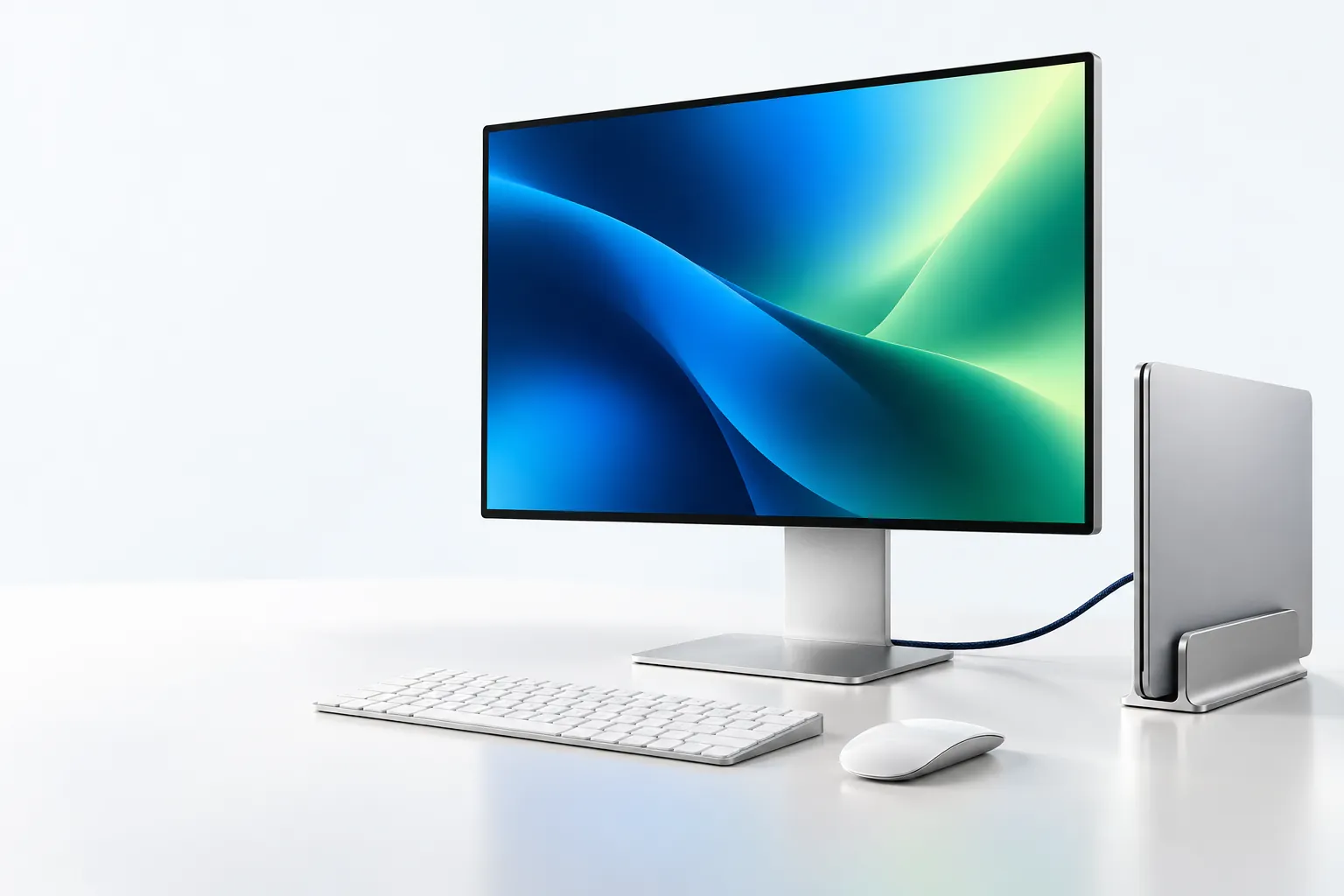
What Apple documents for a closed MacBook lid
Apple’s MacBook Pro and MacBook Air guides say you can close the lid and keep using the Mac after you connect an external display and accessories. The MacBook Pro page and the MacBook Air page both put it that way.
If the external display is dark on a laptop with a closed lid, Apple tells you to make sure the Mac is connected to power and using an external keyboard and mouse. The M3 dual-display article lists the same pieces, and adds a trackpad as an option for the pointing device: an external keyboard and a mouse or trackpad, plus power. If the external display provides power to the Mac, that article says a separate power adapter is not needed.
man pmset on macOS names the lid a clamshell in the lidwake setting, which wakes the machine when the laptop lid (or clamshell) is opened. The term “clamshell” here refers to the laptop lid, rather than a separate pmset keep-awake setting. Apple’s display guides describe using the Mac with connected accessories after closing that lid.
| Piece | What Apple’s pages say |
|---|---|
| Power | Connect the Mac to power, unless the display supplies power (M3 dual-display article; dark-display article) |
| External display | Connect the display, then you can close the lid and keep using the Mac (MacBook Pro, MacBook Air) |
| Keyboard and pointing device | External keyboard and mouse (dark-display article); mouse or trackpad (M3 dual-display article) |
The linked display instructions require power and an external display for closed-lid use. For a laptop without that setup, Apple’s sleep guide lists closing the display as a way to put it to sleep.
How to use a MacBook with the lid closed and an external display
Connect the Mac to power, attach an external display, and use an external keyboard and mouse or trackpad, then close the lid. Apple’s M3 instructions give an explicit connection order; the MacBook guides describe continued use with a connected display and accessories.
- Connect an external keyboard and a mouse or trackpad. The M3 article lists this first for a two-display closed-lid setup. The dark-display article expects an external keyboard and mouse when the lid is already closed.
- Connect the Mac to power. Skip a separate adapter only if the external display provides power to the Mac, as that M3 article states.
- Connect the external display to power, then to a compatible video port on the Mac, with an adapter if needed, using Apple’s display-connection steps. Turn the display on if it has a power button.
- Wait until the Mac desktop appears on the external display. Open System Settings, then Displays, if you need to arrange the screen, as both MacBook Pro and MacBook Air guides describe.
- Close the lid.
- Use the external keyboard or mouse. Apple’s sleep and wake page says you wake a Mac by pressing a key or clicking the mouse or trackpad.
If the external display stays dark, follow Apple’s dark-display checks: reseat the cables, sleep and wake the Mac, hold Option in Displays to show Detect Displays, or restart. On a Mac with Apple silicon, allow the display if macOS asks.
Two external displays with the lid closed is a separate, model-specific path. Apple documents it for MacBook Air and MacBook Pro with the M3 chip: macOS Sonoma 14.3 or later on Air, macOS Sonoma 14.6 or later on Pro, then keyboard and mouse or trackpad, power, first display, close the lid, second display. Open the lid with both displays connected and Apple says the secondary external display goes dark or disconnects.
What happens if you close the lid without an external display
Closing a MacBook display is a standard macOS sleep action; Apple’s external-display instructions describe how to continue using the laptop with its lid closed. The current Mac User Guide, Put your Mac to sleep or wake it, lists “On a Mac laptop, close the display” as one of the ways to sleep. Wake is the reverse: open the display, or press a key or click the mouse or trackpad.
A keep-awake tool that only blocks idle sleep does not change what Apple writes about closing the display. man caffeinate on macOS describes -i as an assertion that prevents the system from idle sleeping. Lid close is how Apple tells you to sleep a laptop.
If you close the lid during Shut Down, Apple warns that the Mac may not shut down properly and may start more slowly the next time. The shut-down page says to wait until shutdown finishes before you close the display.
Why third-party lid-closed hacks are risky
A lid-closed workaround can be risky if it encourages running a MacBook with poor ventilation; Apple’s safety guide warns about overheating and requires adequate ventilation. The setup articles above describe powered external-display use; they do not endorse scripts or apps that bypass that setup.
Apple’s temperature page tells you to use a Mac laptop on a stable work surface with good ventilation, not in a bed, on a pillow, or under bedding, and not with anything over the keyboard or in the vents. The MacBook Pro safety guide repeats the ventilation rule and adds: do not place the device or its power adapter under a blanket, pillow, or your body while it is connected to a power source; never push anything into the ventilation openings. The fans article says to use a hard, flat surface such as a table or desk, and that a soft surface (couch, pillow, bed, or lap) can make the fans run more.
Keep a running Mac on the ventilated surface Apple recommends; do not assume a carrying bag provides that ventilation. Apple’s handling page talks about bags as a way to carry the Mac, with a caution about loose items finding the vents. That page does not describe running the computer in the bag.
Apple’s closed-lid instructions start with power. A hack that holds the Mac awake on battery with the lid shut leaves the portable on battery in a state those pages do not describe. man pmset on macOS lists sleep, displaysleep, lidwake, and the other documented settings. If a flag is not in that list, leave it alone.
For a Mac that will sit on power at a desk for a long stretch, Apple’s Battery settings include Optimized Battery Charging (delay past 80 percent when the Mac predicts you will stay plugged in) and, on some models, Charge Limit. Those options are about a plugged-in desk, which is the setup Apple already documents for a closed lid.
What to do today if you need the Mac awake
Use Apple’s closed-lid desk if you have an external display, power, and an external keyboard and mouse or trackpad. If you do not, leave the lid open and keep the Mac awake while the built-in display sleeps.
Napless can do the second job today. Allow Display to Sleep is in Settings → General and in the Napless menu. Start a Keep Awake For or Keep Awake Until session from the menu bar, leave the lid open, and leave Allow Display to Sleep on so the display can sleep while Napless holds the Mac awake.
Napless is free. It runs on macOS 13 or later, on Apple silicon and Intel, and is signed and notarized by Apple. Download Napless.
The same idea exists in System Settings. Apple’s Battery settings include “Prevent automatic sleeping on power adapter when the display is off.” That checkbox is for a Mac that is plugged in, with the display already off. It is not a closed-lid switch.
From Terminal, man caffeinate on macOS documents -i as a hold against idle sleep:
caffeinate -iLeave the lid open. caffeinate -i lasts until you stop the process. Add a command if you want the hold to last only while that command runs, as the man page’s caffeinate -i make example does.
The caffeinate command guide lists the other flags. -s prevents system sleep only on AC power.
If you are keeping a Mac awake for a long AI coding agent run, use the closed-lid desk or leave the lid open. Closing the lid on a running agent, with no external display, is the sleep path Apple documents.
The wider list of keep-awake methods lives on how to keep a Mac awake.
What Napless will do for a closed lid
Napless Keep Awake With Lid Closed is coming in an update and will stop on heat, at a battery floor, and after a time limit, according to Napless Help. The feature is not available yet; the published help text supplies no launch date.
Heat protection already exists for ordinary keep-awake. Settings → General → Safety has Stop If Your Mac Gets Too Hot, on by default. When the Mac’s thermal state is serious or critical, Napless stops keeping the Mac awake and the menu says the Mac is paused because it is hot.
Current keep-awake can also stop on low battery when battery protection is enabled; the IT page lists that protection as off by default. The IT settings page documents a battery floor (default 20 percent, minimum 10) for that existing protection.
The Help page does not give numbers for the future lid-closed floor or time limit.
Napless Help lists failure to restore closed-lid sleep as a health warning and lid detection as a condition for skipping chat pointer movement. Those diagnostic descriptions do not make the lid-closed feature available today. Keep Awake With Lid Closed remains a future update.
Napless Pro is coming soon ($7.99 one time, up to 3 Macs) and is not for sale yet. Lid-closed keep-awake is a later update, not a Pro checkbox you can turn on now. Until it ships, use Apple’s external-display desk or keep the lid open.
Questions
Can a MacBook stay awake with the lid closed on battery?
Apple's closed-lid pages tell you to connect the Mac to power, unless the external display itself supplies power. The linked closed-lid instructions require power from an adapter or the display.
Does caffeinate keep a MacBook awake after you close the lid?
man caffeinate on macOS documents -i as a hold against idle sleep, not against the sleep that follows a closed lid. Use Apple's external-display setup, or leave the lid open.
Is Napless Keep Awake With Lid Closed available now?
No. Keep Awake With Lid Closed is coming in an update. The Napless Help page says it will stop on heat, at a battery floor, and after a time limit.
How do you wake a MacBook whose lid is closed?
Apple's sleep page says to open the display, or press a key or click the mouse or trackpad. In the desk setup, use the external keyboard or mouse.
Keep reading
 Every way to keep a Mac awakeHow to keep a Mac awakeSystem Settings, Terminal and menu bar apps, side by side.Read the guide
 AI coding agentsKeep a Mac awake while Claude Code or Codex runsKeep a Mac awake while Claude Code, Codex and other agents work.Read the guide
 The caffeinate commandHow do I use the caffeinate command on a Mac?Every flag, with examples you can paste.Read the guide